Library
How to add your own games to Nightcade on iPhone
Nightcade plays game files you own. Here is every way to get them into the app: Files, folders, ZIPs, a link, or a computer over Wi-Fi.
Updated November 15, 2026 · App Store · iPhone and iPad, iOS 17 or later
Why you add games yourself
Nightcade includes no commercial games and does not suggest, list or link to any place to get them. You use game files that you own or that are licensed for you to use, and Nightcade recognises the system from the file. Every way of adding them below is free.
If you only want something to play right now, the 25 homebrew games built into the app need no files: see how to play homebrew games.
Add games step by step
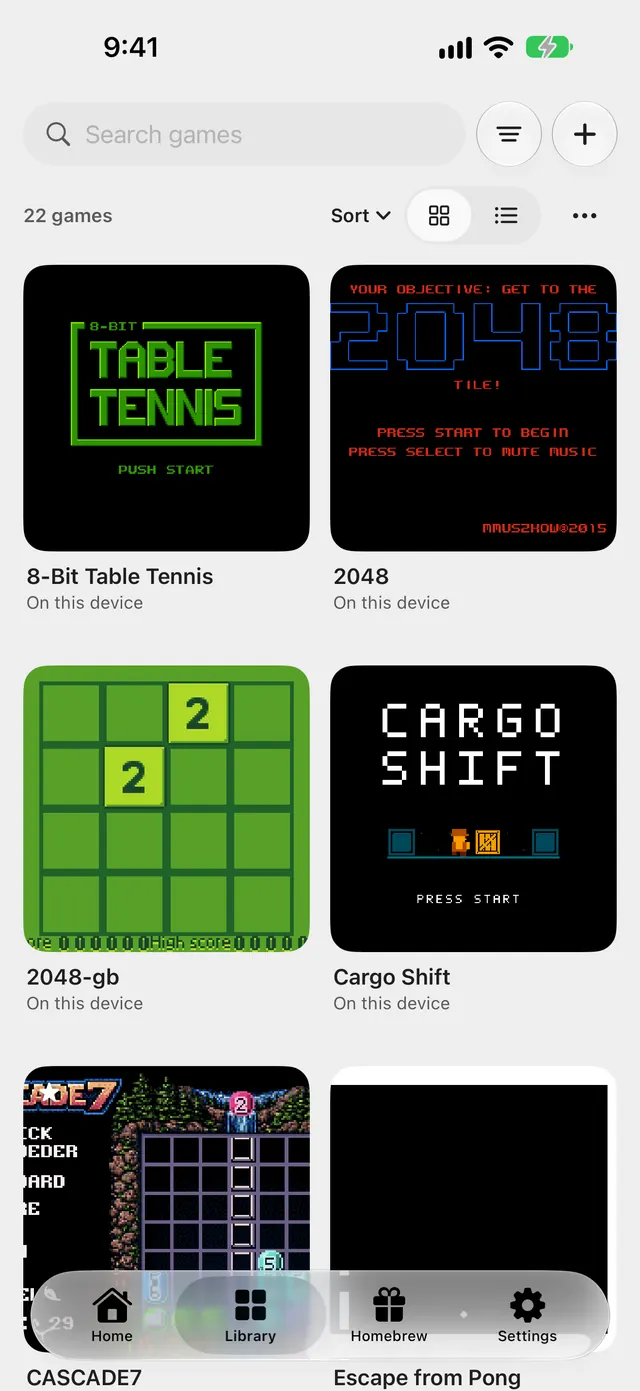
Start in the Library tab. With no games yet it shows Add your first game: tap Import games and follow "From Files" below. Once the library holds a game, the + button next to the search field opens the Add games menu with every way listed here. The first four copy the games onto your iPhone (Copy to this device).
From Files
- Open the Library tab.
- Tap Import games, or tap the + button and choose Files….
- In the Files picker, choose one or more game files or ZIPs. You can choose several at once.
- Wait for the import to finish. A single new game simply appears in the library. For several files an alert says how many were added and how many were already there, and lists up to ten files that could not be imported with the reason for each; if more failed, a line says how many more. The alert is titled Import finished when everything worked and Couldn’t import game when something failed.
From a folder
- Tap the + button and choose Folder….
- Choose the folder that holds your games.
- Nightcade walks through the folder and its subfolders, imports the game files and ZIPs it finds, and skips everything else. It reads up to 5,000 files in all.
From a ZIP
A ZIP is picked like any file: use Files… and choose it. Nightcade opens it, imports every game inside and skips the other files. A ZIP that is encrypted or compressed in a way Nightcade cannot read is refused with This ZIP file uses encryption or a compression the app cannot read..
From a link
- Tap the + button and choose From a link….
- Paste the address of a game file, or of a ZIP of games, that you own. Only secure links (https) work.
- Tap Download and wait while Downloading… shows.
- The game is imported like a file from Files. Files over 256 MB are refused.
From a computer over Wi-Fi
- Connect your iPhone and your computer to the same Wi-Fi network.
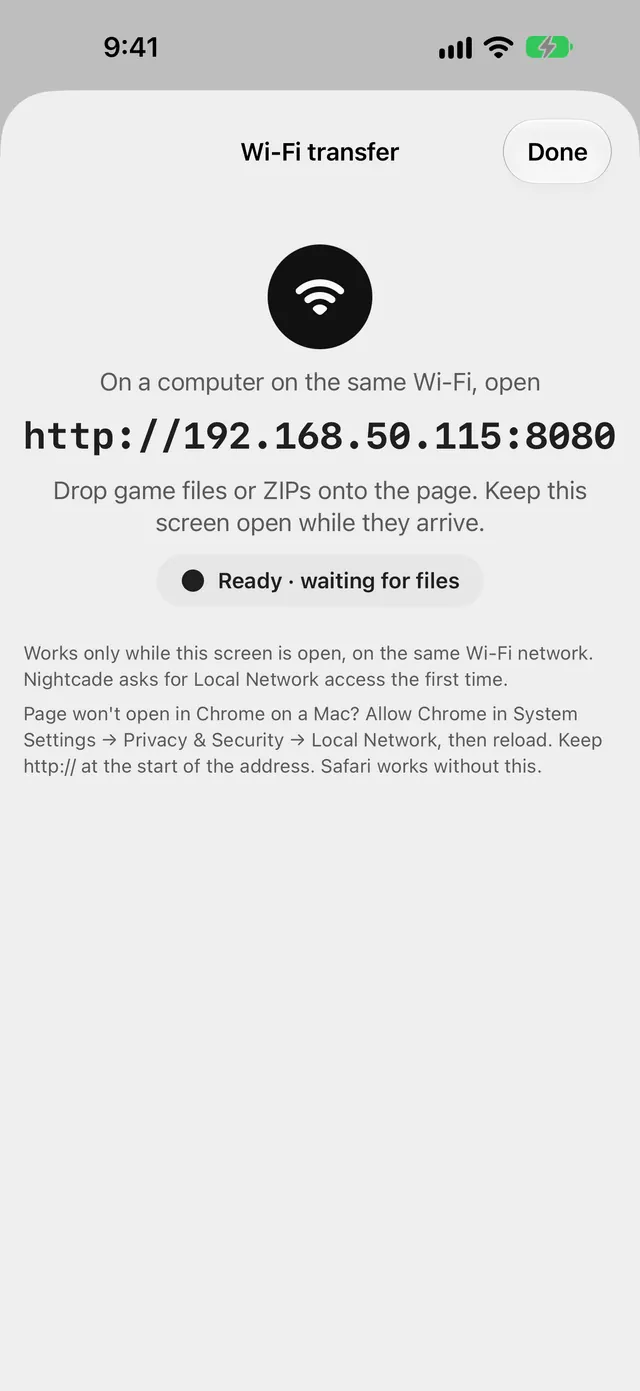
- On the iPhone, tap the + button and choose Wi-Fi transfer. Allow Local Network access when iOS asks.
- The screen shows an address. On the computer, open that address in a web browser, including the http:// at the start.
- Drop game files or ZIPs onto the page, or click it to choose them.
- Keep the Wi-Fi transfer screen open on the iPhone while the files arrive. Each file is listed as it is received and added to your library.
- Tap Done when you are finished. The transfer also stops when you leave the screen or the app.
Chrome on a Mac not opening the page? In System Settings → Privacy & Security → Local Network, allow Chrome, then reload. Safari works without that step.
Tips
- Discs: select a disc's .cue file together with the track files it lists, or choose the folder that holds them. Multi-disc games are grouped into one game; change disc from Game menu → Change disc while you play.
- BIOS: some systems need a BIOS file to start. Nightcade includes open replacements where they exist; for the others, add the file you own in Settings → System files.
- Play in place: Link a folder…, under Play in place, plays games where they are instead of copying them. It is part of the one-time purchase.
- Find a game again: use Search games or Sort at the top of the library.

Nightcade — Classic Consoles & Handhelds
Plays the games you own on iPhone, iPad, Mac and Apple TV
Frequently asked questions
Does Nightcade come with games?
It includes 25 homebrew games from independent developers, each shared under a licence that allows it. It includes no commercial games.
Where can I get game files?
Nightcade does not name, link to or suggest any source. Use files you own or that are licensed for you to use.
A file did not import. Why?
The alert after the import lists up to ten failed files and why. Common reasons are a file that is not a game, an incomplete file, a ZIP with nothing usable inside, a disc missing its track files, or not enough storage on the iPhone.
Does Wi-Fi transfer work away from my home network?
Only when your computer and iPhone are on the same Wi-Fi network, and only while the Wi-Fi transfer screen is open.
Is adding games free?
Yes. Files, folders, ZIPs, links and Wi-Fi transfer are free. Only linking a folder to play in place is part of the one-time purchase.