Homebrew
How to play homebrew games on iPhone
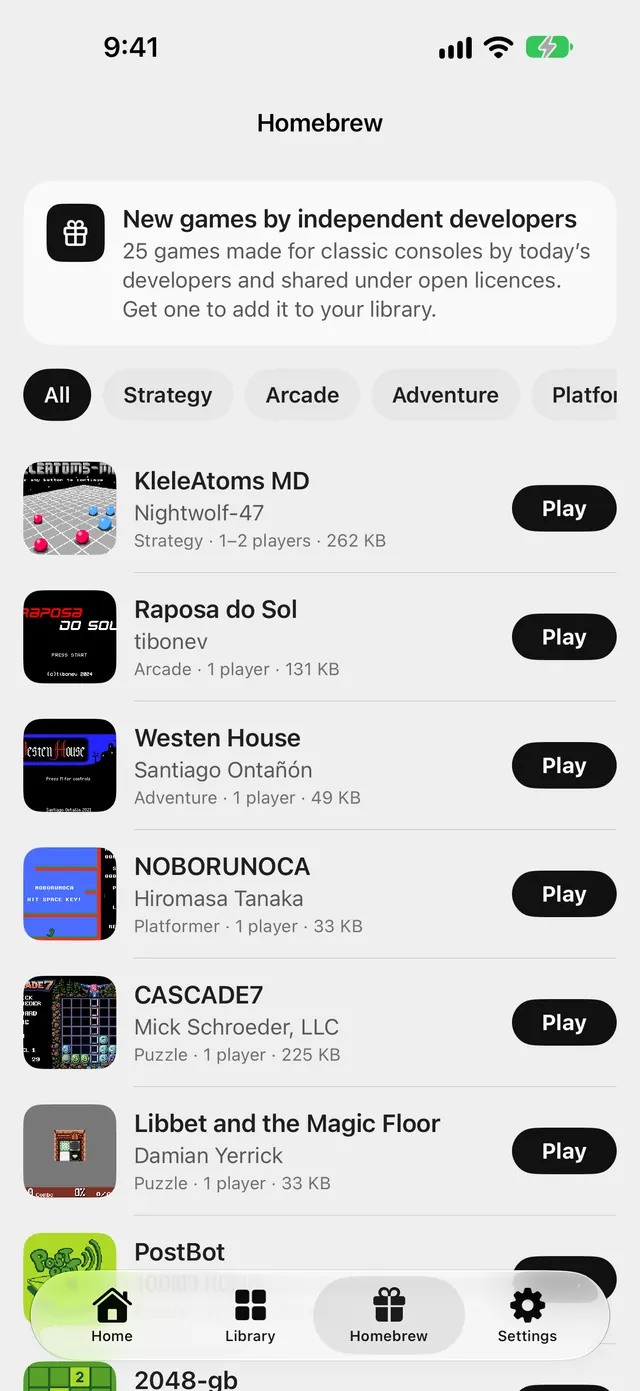
Nightcade includes 25 homebrew games by independent developers. There is nothing to find or import: open the tab, tap a game and play.
Updated November 15, 2026 · App Store · iPhone and iPad, iOS 17 or later
Why homebrew games
Homebrew games are new games made by independent developers for classic consoles. Nightcade includes 25 of them, each shared by its developer under a licence that lets Nightcade include it, so they are the quickest way to start playing and need no game files of your own. They are free for everyone to add and play.
Play a homebrew game step by step
- Open the Homebrew tab.
- To narrow the list, tap a genre at the top, such as Puzzle or Arcade. All shows every game.
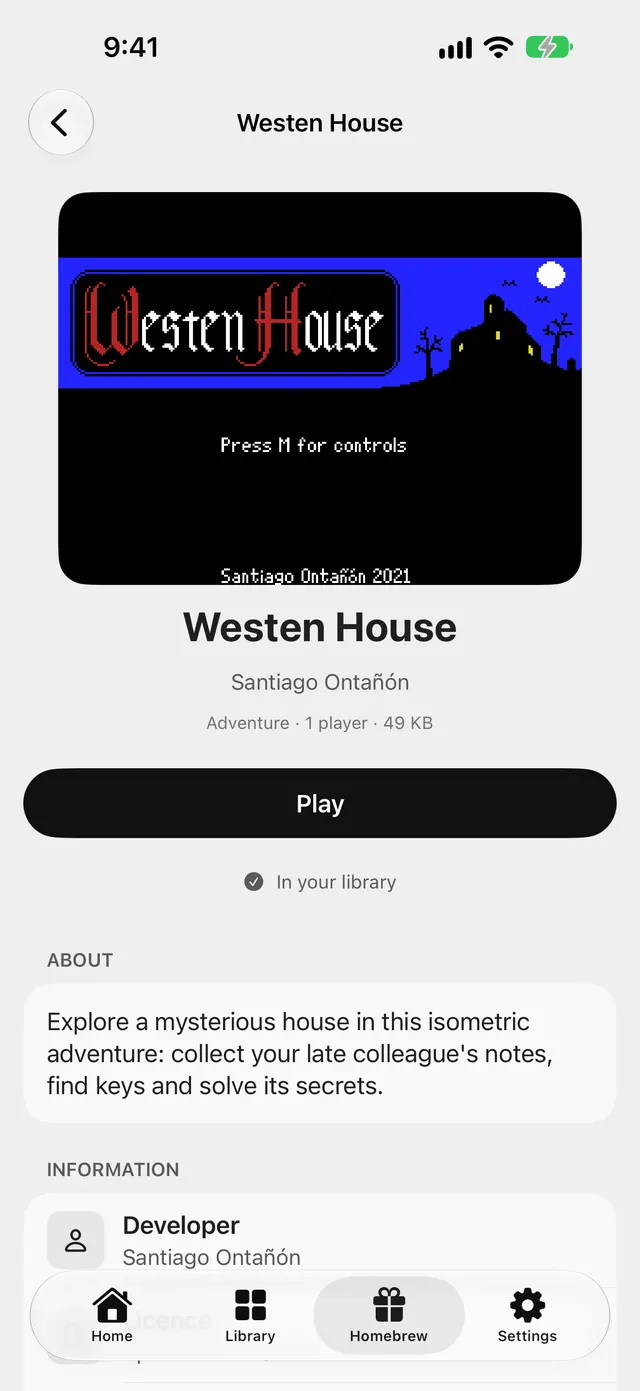
- Tap a game to open its page. It shows the title screen, the developer, the genre, whether it is for one player or two, and its size, then About and Information.
- Tap Play to start. The first time, Nightcade adds the game to your library as it opens. To only add it, tap Add to Library.
- In the list, each row has a Get button that adds the game; once it is in your library the same button reads Play.
- Next time, open the game from the Library tab, or from Continue playing on the Home tab. A game that is already added shows In your library on its page.
Read who made it and under which licence
On a game's page, Licence opens the licence text, Credits names the people behind its music, art or sound where the author credits them, and Developer’s page opens the developer's page. Every game's licence is also listed in Settings → Privacy and about → Licences.
Tips
- Controls: touch controls are laid out for each game's system, in portrait and landscape. To move or resize the buttons, open the game menu during play and choose Edit controls.
- Controller: connect a game controller in iOS Settings → Bluetooth, then check it under Settings → Controllers.
- Pick up later: Nightcade keeps your place when you leave a game, so a homebrew game resumes like any other.
- Your own games: to add game files you own, see how to add your own games.

Nightcade — Classic Consoles & Handhelds
Plays the games you own on iPhone, iPad, Mac and Apple TV
Frequently asked questions
Are homebrew games free?
Yes. Every homebrew game built into Nightcade is free to add and play.
Are these commercial games?
No. They are new games by independent developers, shared under open licences. Nightcade includes no commercial games.
Do I need an internet connection or any files?
No. The games are inside the app, so Get and Play work without a download or an import.
Who made the games?
Each game's page names its developer and links to the developer's page. Music, art and sounds by other people are credited on the page where the author credits them.
Can I add other homebrew games?
Yes, if you have the file and the licence allows it: add it like any other game file, as shown in the guide linked above.